Read and drive the screen
Your agent reads the screen as a compact tree of controls and acts on a control by what it says. The same verbs work on an Android emulator and an iOS Simulator.
Try it autonom ui tree
Needs a session on one target
How it works
The tree comes from UI Automator on Android and from idb on iOS. Autonom turns both into one compact node: a ref, a role, text, desc, an id, bounds and a few flags. Every read belongs to the session that owns the target, and is saved with it.
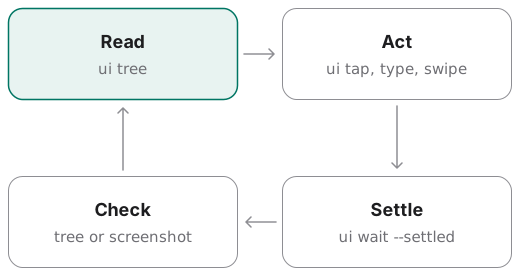
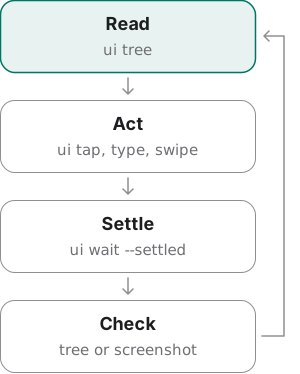
Selectors come first: text, desc, resource id, class, package or role, matched exactly, by substring or by regular expression. Coordinates are the fallback. A flow uses the same selectors, so what works here replays there.
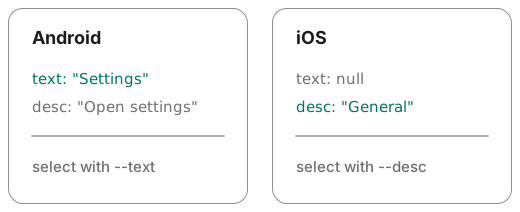
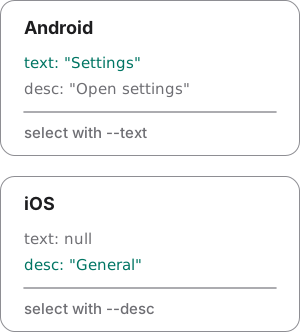
One difference between the platforms matters more than any other: where the visible label lives. An Android control keeps it in text, an iOS control in desc, and Flutter on Android in desc too.
A tap that exits 0 has not proven anything yet. Compare the tree or a screenshot before and after, which is why the loop ends in a check.
Examples
Every output here comes from Autonom’s test device, with a fixture standing in for each screen, so you can rerun it without an emulator. Reproduce these outputs, at the end of this section, has the exact commands.
See what is on screen
Goal: one line per control, then every field of the one you want.
- Read the outline.
Only the controls your agent can act on, one line each.
autonom ui tree --format outline --interactable - Read the full nodes.
The JSON form of the same screen carries every field.
autonom ui tree
You should see five controls in the outline field, printed here one per line, then the Sign in with Email node with its label in desc.
What to look at. Each outline line is ref, role, label, position, size and flags. On this Flutter screen n8 has text null and its label in desc, so select it with --desc.
Show full output
Find and tap a Flutter control
Goal: tap a Flutter Log In button on Android, whose label lives in desc.
- Find it by its label.
An exact match makes sure only this button answers.
autonom ui find --desc "Log In" --mode exact - Tap it.
The same label selects the same node.
autonom ui tap --desc "Log In"
You should see one match at index 0, then a tap on the same node.
What to look at. text is null and desc holds the label, so --desc finds it. The tap acts on the same ref, n3, at the center of its bounds, and names the tool that touched the screen.
Read where iOS keeps a label
Goal: see which field holds the label on an iOS Settings screen before you select.
- Read the tree.
On iOS it comes from the accessibility hierarchy.
autonom ui tree
You should see the General row with text null and its label in desc.
What to look at. desc holds General and text is null, so select it with --desc, or by resource_id when the app sets accessibility identifiers. The bounds are points, not pixels.
Tap one of several identical controls
Goal: tap the Irina Weaver button you can see on an iOS catalog screen, where a second button with the same label sits off screen.
- Find every match.
Each match shows its index, and one off screen says so.
autonom ui find --desc "Irina Weaver" --mode exact --all - Tap the one on screen.
--indexcounts only on-screen matches, from 0.autonom ui tap --desc "Irina Weaver" --mode exact --index 0
You should see two matches, n4 on screen at index 0 and n12 off screen with no index, then a tap on n4.
What to look at. n12 has zero bounds and visible false, so its index is null and --index never reaches it. --index 0 picks n4, and the tap lands at the center of its bounds. The tap exits 0, but only a fresh tree or a screenshot proves the screen changed.
Show full output
Reproduce these outputs
From the root of an Autonom d0f7211 checkout, in bash or zsh. The autonom function runs that checkout against its test doubles, so no device is needed. Ids and times differ on every run.
Good to know
- Exit 0 does not prove a tap changed the screen. Compare trees or screenshots before and after, and pin the status bar first so the difference shows only what the app changed.
- On iOS the label is in
desc. A control labeled General hastext: null, so--textfinds nothing there. On Android, a--textsearch whose label sits indescreturns alabel_is_in_descwarning whose hint is the--descretry. - An off-screen copy is never picked first. On-screen matches are counted first. If a tap answers
element_offscreen, swipe the control into view and select it again, rather than tapping coordinates. - Typing needs focus. With no focused field the characters vanish while
ui typestill exits 0. Readfocusedin the response or theno_focused_fieldwarning, and confirm withui find. - iOS coordinates are points. Never multiply by the display scale. A tap outside the reported screen is refused with
coordinate_space_mismatch, while an iOS screenshot is measured in pixels. - Re-read after every navigation. Refs belong to one tree. Run
ui wait --settled, then read again before the next action. - A sparse tree means the app exposes little.
sparse_accessibility_treedoes not mean the screen is empty. Add labels in the app, or fall back to a screenshot.
Reference
The ui verbs and the evidence around them. Two iOS input switches go before the verb: --ios-hid picks idb or AXe, and --axe names the AXe binary.
| Command | What it does |
|---|---|
autonom ui tree [--dump FILE] | Reads the compact tree, or a saved dump. --format outline prints one line per node; --interactable keeps only what an agent can act on. |
autonom ui wait --settled | Waits until two trees in a row match, up to --timeout-ms. Exits 1 if the screen never settled. |
autonom ui find | Finds nodes by --text, --desc, --resource-id, --class-name, --package or --role, on-screen ones first, each with the index that selects it. --mode is exact, contains or regex. |
autonom ui tap [selector flags] | Taps a node by selector, or a point with --x and --y as a fallback. |
autonom ui swipe --from X,Y --to X,Y | Drags from one point to another. |
autonom ui type <text> [--sensitive] | Types into the focused field. --sensitive keeps only its length in the response and the saved action. |
autonom ui key <keycode> | Presses a hardware key. |
autonom ui pinch --at X,Y [--scale F] | Refused on both platforms with unsupported_on_platform, like ui rotate and ui shake. |
autonom screenshot [--label L] | Saves a screenshot with its width, height and where it was taken. |
autonom simulator status-bar <action> | Pins the status bar so before and after screenshots differ only where the app changed. |
Android and iOS differences
The iOS tree is the accessibility hierarchy, not the SwiftUI or UIKit view tree, so its quality depends on the app’s labels.
| Capability | Android | iOS Simulator |
|---|---|---|
| Tree | UI Automator | idb |
| Visible label | text, or desc in Flutter | desc |
| Input | adb | idb, or AXe on Xcode 27 |
| Keys | KEYCODE_* | HOME, LOCK, SIDE_BUTTON, SIRI, APPLE_PAY or a HID code |
| Back | KEYCODE_BACK | None: tap the navigation bar’s back control |
| Focus before typing | Verified | Unverified: a text field is on screen |
| Pinch, rotate, shake | Refused | Refused |
Next steps
You can read the screen and act on a control by what it says.